

Duplicate Invoices in QuickBooks Online
Duplicate invoices in QuickBooks Online are a common issue for trade businesses managing high volumes of billing activity. These duplicates can appear due to system sync problems—such as account disconnect/reconnect issues—or manual entry errors, like selecting the wrong customer or invoice number from a dropdown.
Vendors may also contribute to duplicate entries by resending the same invoice in follow-up attempts for payment, or by accidentally using the same transaction number multiple times.

Left unchecked, these duplicates can lead to overpayments, cash flow disruptions, and accounting headaches. And without a consistent process to catch them, your business could lose thousands every year due to billing redundancies.
How Duplicate Invoices Impact Trade Businesses
Many trade businesses rely on QuickBooks Online to help manage invoice workflows, but automation doesn’t fully eliminate risk. Duplicate transactions still sneak through due to human error, sync glitches, or vendor behavior.
Even a single duplicate can throw off your financial records—but when they happen across multiple vendors, the costs add up fast. It’s not just about profit loss: correcting duplicates also consumes time, strains vendor relationships, and disrupts your ability to make fast purchasing or hiring decisions.
To protect your margins and cash flow, it’s essential to review your invoices for duplicates. Below are two manual ways to do that in QuickBooks.
Detect Duplicate QuickBooks Invoice Payments
How to Identify Duplicate Payments
Use this method to identify repeated transaction numbers in QuickBooks:
- Sign in to your QuickBooks account.
- From the left-hand menu, select Expenses.
- Click the NO. column header to sort and review for duplicates.
How to Check for Duplicate Bills By Each Vendor
Review vendor-specific transactions to catch potential duplicates:
- Sign in to your QuickBooks account.
- Go to Reports in the main menu.
- In the search bar, type Transaction List by Vendor.
- Set the report period to All Dates.
- Click Run report.
- Use the Sort by dropdown and select Num to list transactions by number.
How to Detect All Invoice Errors with InvoiceIQ
Manually checking for duplicates in QuickBooks Online is time-consuming and inefficient. But what if you could prevent duplicates before they ever enter your accounting software?
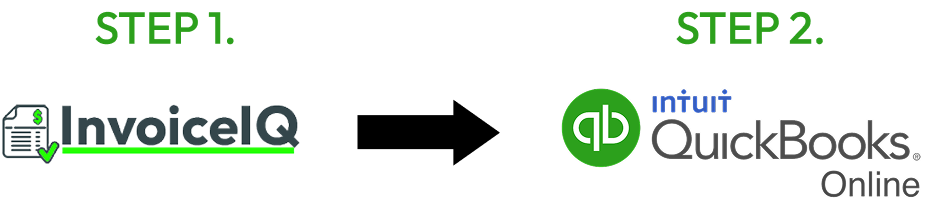
That’s exactly what InvoiceIQ does.
Rather than detecting duplicate invoices inside QuickBooks, InvoiceIQ stops duplicates at the source. Every invoice is scanned by our system before upload, and if it’s already been processed or submitted, InvoiceIQ blocks it from being entered again.
This proactive approach eliminates duplicate entry at the root—helping you:
- Avoid double payments.
- Maintain clean, accurate financial records.
- Save time and prevent tedious reconciliation work
For just $20/month, InvoiceIQ reviews up to 500 invoices and ensures only clean, verified invoices are passed into QuickBooks Online.